Orbital Learning Center

Learn the studio.Build with confidence.

Focused, task-based guides for moving from a blank project to a polished, published 3D experience.

Search all guides8 of 8
Start here
Guide 01
3 min

Create your first Orbital project

Understand the dashboard, start from a clean scene, and know where every project lives.
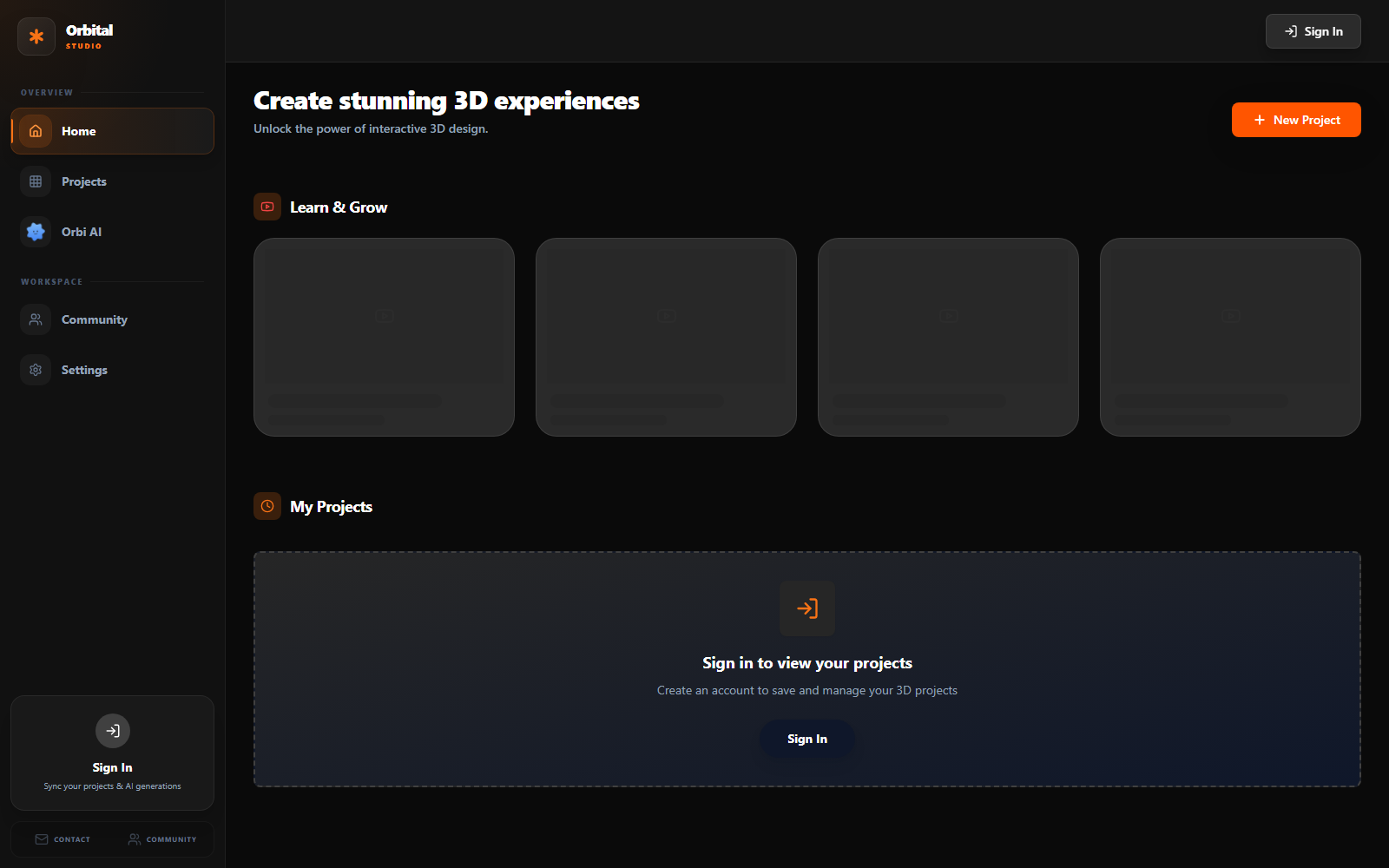
Orbital 3D dashboard with navigation, learning resources, and project controls
Orbital 3D dashboard — open learning resources, browse projects, or create a new scene.

What you will learn

  • Use Recent projects to continue work without searching through files.
  • Choose a starter template when you want a proven visual foundation.
  • Create a new project for an empty scene with default camera and lighting.

Recommended workflow

  1. 1Sign in and open the Dashboard.
  2. 2Select New project or choose a starter template.
  3. 3Name the project before making major scene changes.
Ready to put this guide into practice?
Editor basics
Guide 02
5 min

Navigate the editor workspace

Learn the scene tree, viewport, inspector, timeline, and the controls you will use most.

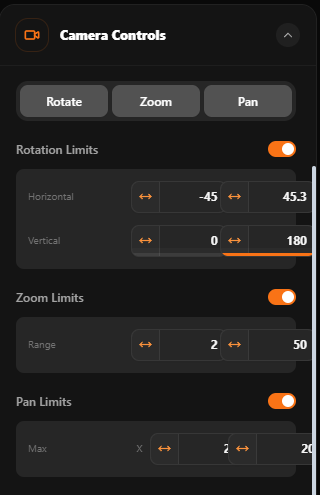
Orbital 3D camera controls with rotation, zoom, and pan limits
Orbital inspector — precise camera rotation, zoom, and pan controls inside the editor.

What you will learn

  • Select objects from the scene tree or directly in the viewport.
  • Edit exact values in the inspector or drag the horizontal scrub handle.
  • Use the timeline for appearance events and scene animation timing.

Recommended workflow

  1. 1Select an object in the scene tree.
  2. 2Use G, R, and S for move, rotate, and scale.
  3. 3Press Ctrl or Command + Z to undo the latest change.
Ready to put this guide into practice?
Look development
Guide 03
6 min

Shape materials, lighting, and effects

Build a polished look with PBR properties, glow, glass, lights, and post-processing.

What you will learn

  • Roughness controls how sharp or soft reflections appear.
  • Metalness moves a surface from dielectric to metallic response.
  • Bloom and emissive colour create light that reads clearly in dark scenes.

Recommended workflow

  1. 1Select the target object or visual effect.
  2. 2Choose a material preset, then refine individual values.
  3. 3Check the result at the final camera angle before publishing.
Motion
Guide 04
7 min

Add animation and interactivity

Turn a static scene into a responsive experience using timeline events and interaction triggers.

What you will learn

  • Use appearance events to control when an object enters the scene.
  • Connect hover, press, scroll, time, or proximity triggers to saved states.
  • Tune duration and easing before layering multiple events.

Recommended workflow

  1. 1Create the visual states the interaction will move between.
  2. 2Choose a trigger and target state in Events.
  3. 3Preview the complete sequence before sharing the scene.
Project safety
Guide 05
3 min

Save confidently and protect your work

Know what is saved automatically, when to wait, and how published embeds receive updates.

What you will learn

  • Orbital saves project changes in the background while you work.
  • Wait for the saved state before closing the tab after a large upload.
  • Published embeds can receive the newest saved scene without replacing their URL.

Recommended workflow

  1. 1Confirm the saved indicator after important edits.
  2. 2Set the intended opening camera before the final save.
  3. 3Open the published viewer once to verify the live result.
Delivery
Guide 06
5 min

Publish, embed, and export

Choose the right output for a portfolio, website embed, handoff, or reusable project file.

What you will learn

  • Publish creates a shareable viewer experience for your scene.
  • Embed code is intended for Webflow, Framer, Shopify, and custom sites.
  • Use project or model exports when another creator needs editable source.

Recommended workflow

  1. 1Open Share or Export from the editor toolbar.
  2. 2Choose public, unlisted, or private visibility when available.
  3. 3Test the final link at desktop and mobile widths.
Account
Guide 07
4 min

Plans, billing, and AI credits

Understand Starter limits, lifetime studio access, and optional Orbi AI credit packs.

What you will learn

  • Starter is designed for learning the core workflow and publishing initial work.
  • Pro Lifetime unlocks the full studio through a one-time purchase.
  • Orbi AI is a separate one-time credit pack with a defined active period.

Recommended workflow

  1. 1Review the live pricing page for your regional currency.
  2. 2Choose the plan based on studio access, not only AI usage.
  3. 3Contact support with the purchase email for billing help.
Ready to put this guide into practice?
Help
Guide 08
4 min

Troubleshoot common issues

Resolve upload, browser, performance, and account problems before they interrupt a project.

What you will learn

  • Use GLB or GLTF assets and stay within the upload limit shown for your plan.
  • Return browser zoom to 100% if fixed editor controls appear cropped.
  • For account or payment issues, include the account email and a concise screenshot.

Recommended workflow

  1. 1Retry once after confirming the file type and browser connection.
  2. 2Capture the exact error and the action that caused it.
  3. 3Send the details to support@orbital3d.design if the issue continues.
Ready to put this guide into practice?
Could not find the answer?

Share the exact workflow, browser, and screenshot with the support team.