AI 3D website builder.
Start with a prompt.
Describe your 3D scene in plain language. Refine its materials, lighting and motion in Orbital, then publish it or bring it into your website.
Build your scene in Orbital. Use its embed or export with Gemini or another coding assistant for the complete page layout. AI access depends on your plan.
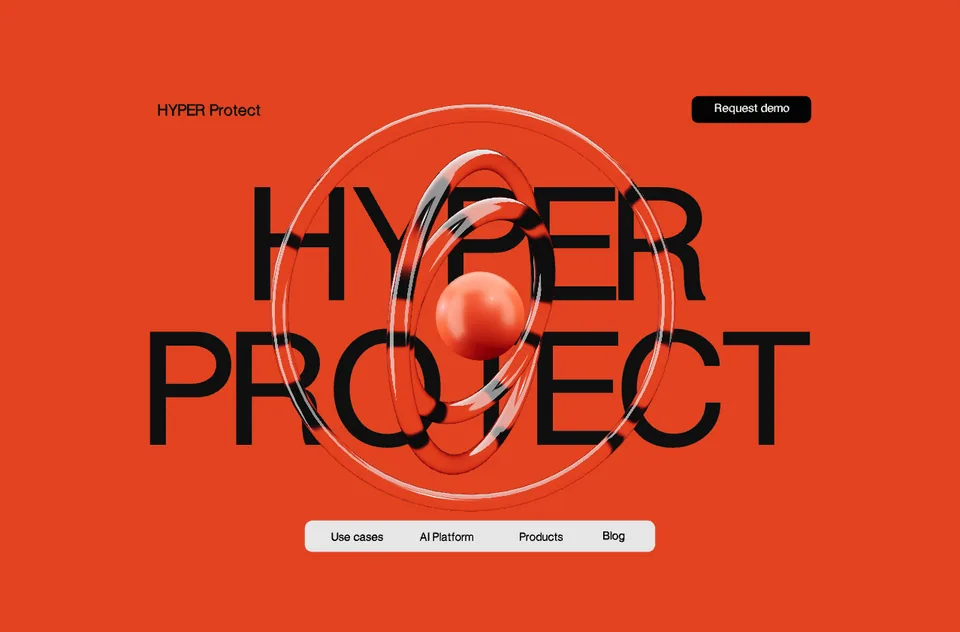
“Create three glass rings around an orange sphere. Add slow rotation.”
From text to a 3D website.
Describe the scene
Open a project and tell Orbi what objects, materials and motion you want. Start with a focused request, such as three glass rings with slow rotation.
Make it yours
Inspect the result. Follow up with another prompt or use visual controls for spacing, materials and the camera. Import your own product model when the design needs it.
Build and publish the page
Publish or export the scene. Add it to your site, or ask Gemini or your coding assistant to build a responsive page around the real scene. Test the finished page on a phone.
3D website prompt examples.
Include the subject, composition, materials, background and motion. Then adjust one thing at a time. These Orbital library scenes show visual directions you can explore.
An animated 3D hero
Create three glass torus rings around a small orange sphere. Rotate each ring on a different axis. Use a bright orange background, clear glass with low roughness, and slow automatic rotation.
Follow up: “Make the rings thinner and slow the rotation down.”
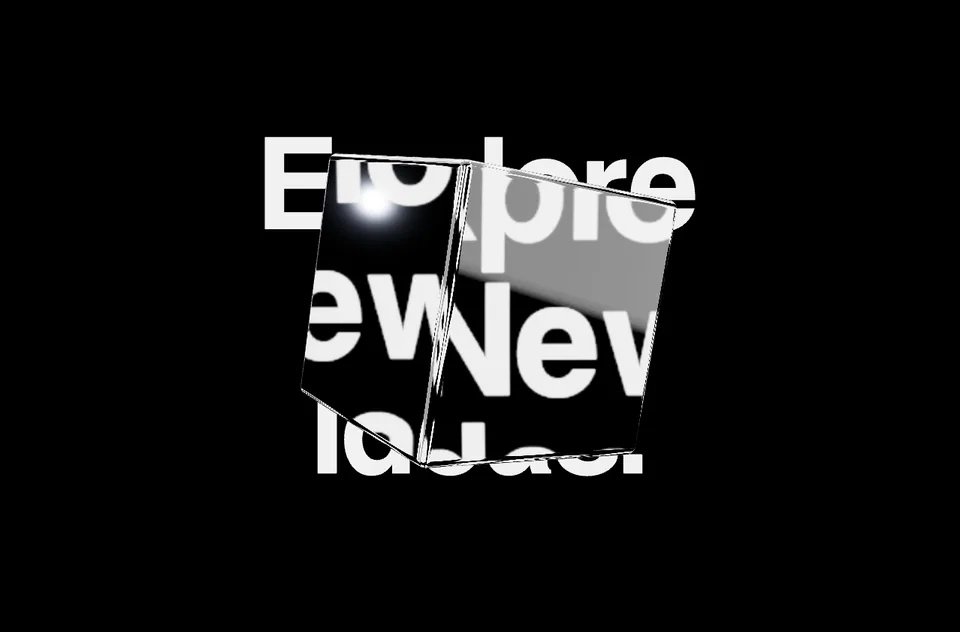
A product showcase
Use the selected product model as the focus of the scene. Center it, give it a slow automatic rotation, use a dark background and studio lighting, and leave space on the left for the page heading.
Follow up: “Keep the product shape and make its surface more reflective.”
Build a 3D website with Gemini and Orbital.
Follow Daksh’s tutorial: compose the scene in Orbital, give Gemini the real embed and a page brief, then combine the 3D canvas with readable HTML, responsive text and a clear call to action.
A 3D scene that belongs on your website.
Choose a published viewer, an embed or an export for your project. Keep headings, navigation and buttons in HTML so the website stays readable, accessible and easy to use around the scene.
- Plan the mobile versionUse a responsive scene container and check that the main action is visible on a small screen.
- Keep motion intentionalGive visitors a stable opening view and consider reduced motion and a static fallback.
- Check loading and interactionTest model size, glass materials, pointer controls and scrolling on the site where the scene will run.
- Read the 3D website performance guide
Questions about AI 3D websites.
How do I create a 3D website with AI?
Start a project in Orbital, describe the 3D scene to Orbi, and refine the result in the visual editor. Publish the scene or export it. For the complete website layout, give that real embed or export to Gemini or your preferred coding assistant along with your page copy and responsive requirements.
What can I make with prompts inside Orbital?
Orbi can add primitive shapes and 3D text, adjust objects and materials, change scene lighting and backgrounds, and set supported motion behaviors. You can also import a model and prompt changes to its appearance and placement. Review the result and use the visual controls for precise adjustments.
Does one prompt generate the whole website?
The studio prompt controls your 3D scene. The page layout, navigation, forms and other website behavior are built around that scene using your website builder or coding assistant. The Gemini tutorial below walks through this combined workflow.
Can I use the result in Framer, Webflow or React?
You can publish a scene and embed its viewer in an HTML embed. Export options depend on your project and plan. Check the result in the destination website, especially pointer events, scrolling, mobile layout and loading behavior.
Do I need to know 3D modeling or code?
You can compose and edit scenes with browser-based visual tools and natural-language requests. A published viewer can be added to a site with an embed. A custom React integration or a complete generated website may need code review and adjustments.
Is the AI 3D website workflow free?
You can explore Orbital and its pricing before choosing a plan. Access to AI requests, credits, publishing and export features depends on your account and plan. Check the current pricing page for the available options.
Start with one scene.
Describe it. Refine it. Bring it to your website.